MSRFVP Reconciliation Tool — User Guide
This tool automates the reconciliation of vessel loading data between Navis (Terminal) and CODS (Maersk Internal).
1. Data Preparation
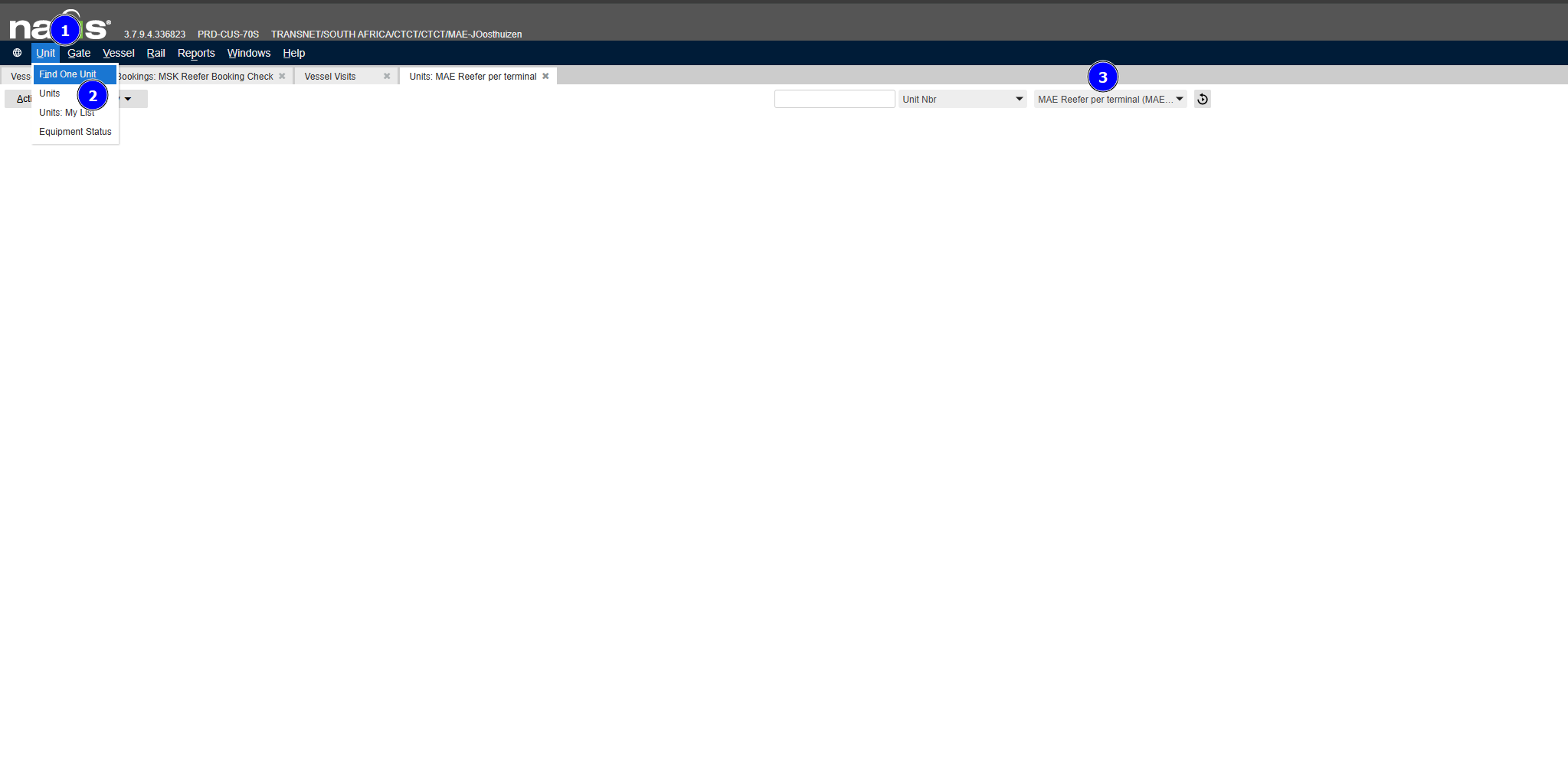
A. Navis Report Generation
To get the correct data from Navis:
1. Go to the Unit menu in Navis.
2. Select Units.
3. Choose the report named: MAE Reefer Per terminal.
4. A popup will appear—type in the Vessel Visit Number.
5. Export the resulting grid to Excel.
B. CODS Report Requirements
Your CODS/GCSS export must include these specific columns (or similar names) for the audit to work: - Equipment Number (Primary ID) - Shipment Number (Booking Number) - VGM Status (Critical: Y/N flag for task automation) - VGM KGS (Weight) - Mark Shipment for VP Date (MSRVP / SIR status) - Price Owner Name & Booked By Customer Name - Vessel Name & Next Discharge Port Code (POD)
2. Using the Tool
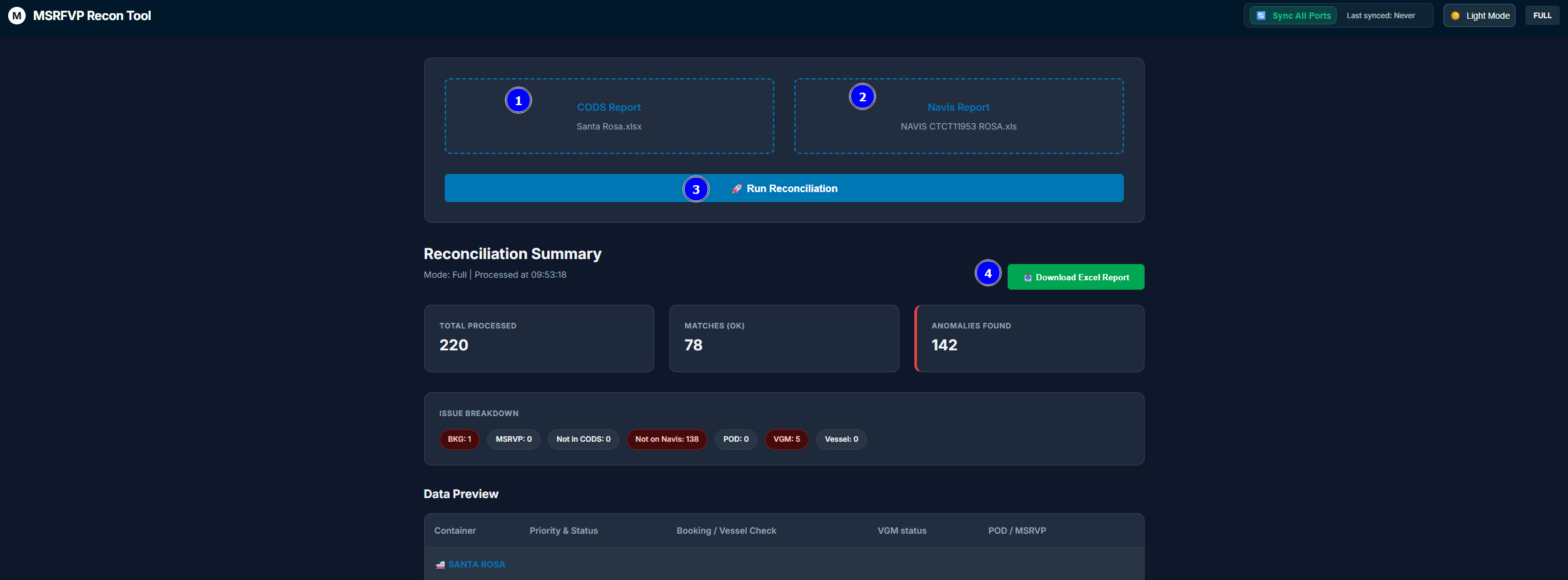
- Sync Vessels: Click "Sync All Ports" to refresh the vessel visit data.
- Upload Files: Drag and drop your CODS and Navis Excel files.
- Run Reconciliation: The tool will process both files, performing a Full Outer Join to capture every container.
3. Reading the Resulting Excel
The tool generates a workbook with two sheets: - Recon — Full: All containers from both reports. - Exceptions — Review: Only the items that need action.
Status Highlights:
- No Issues (Green): Everything matches perfectly.
- Update GCSS VGM (Bold Red): CODS says "No" but Navis has the weight. Action required.
- VGM Task Closed (Green): CODS already has the "Yes" flag.
Priority Groups:
- CRITICAL: Booking missing in CODS. Create it in GCSS immediately!
- HIGH: Booking Mismatch or VGM update needed.
- LOW: Container in CODS but not yet gated in Navis.
4. Troubleshooting
- Zero Matches: Ensure the status in your report is "No Issues". If you see "OK", the tool may be using an old version.
- Booking Not Found: The tool uses a Deep Lookup. If a container isn't in CODS, it will hunt for the info using the Booking Number instead.